Before You Start
Make sure your assistant has been trained at least once.Need help? See the training guide for more information on how to train your assistant.
Starting a Conversation
To access the Try your assistant page:- Click Try your assistant in the left-hand navigation of Rasa Studio.
-
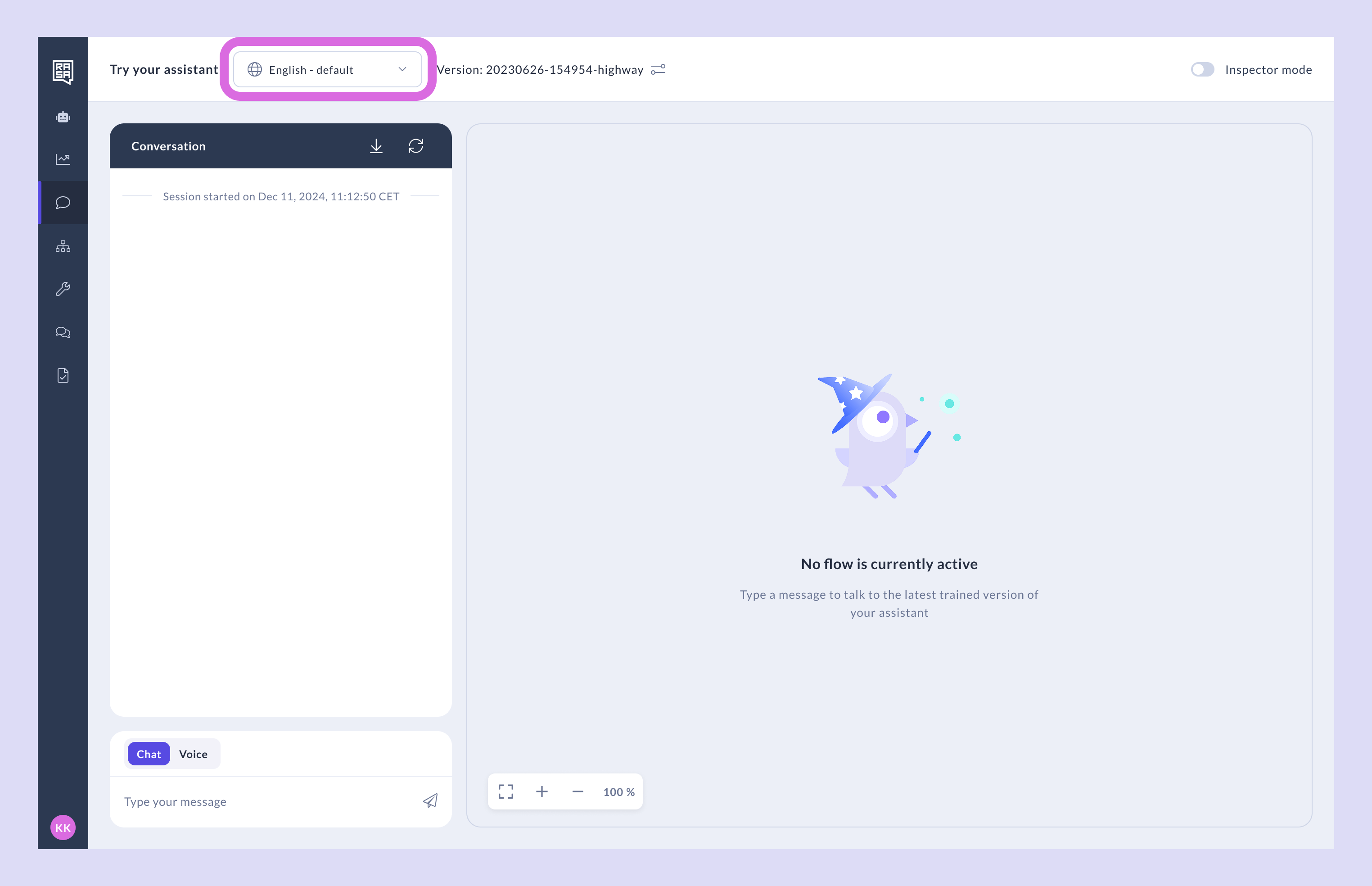
If your assistant supports multiple languages, choose one from the dropdown.
-
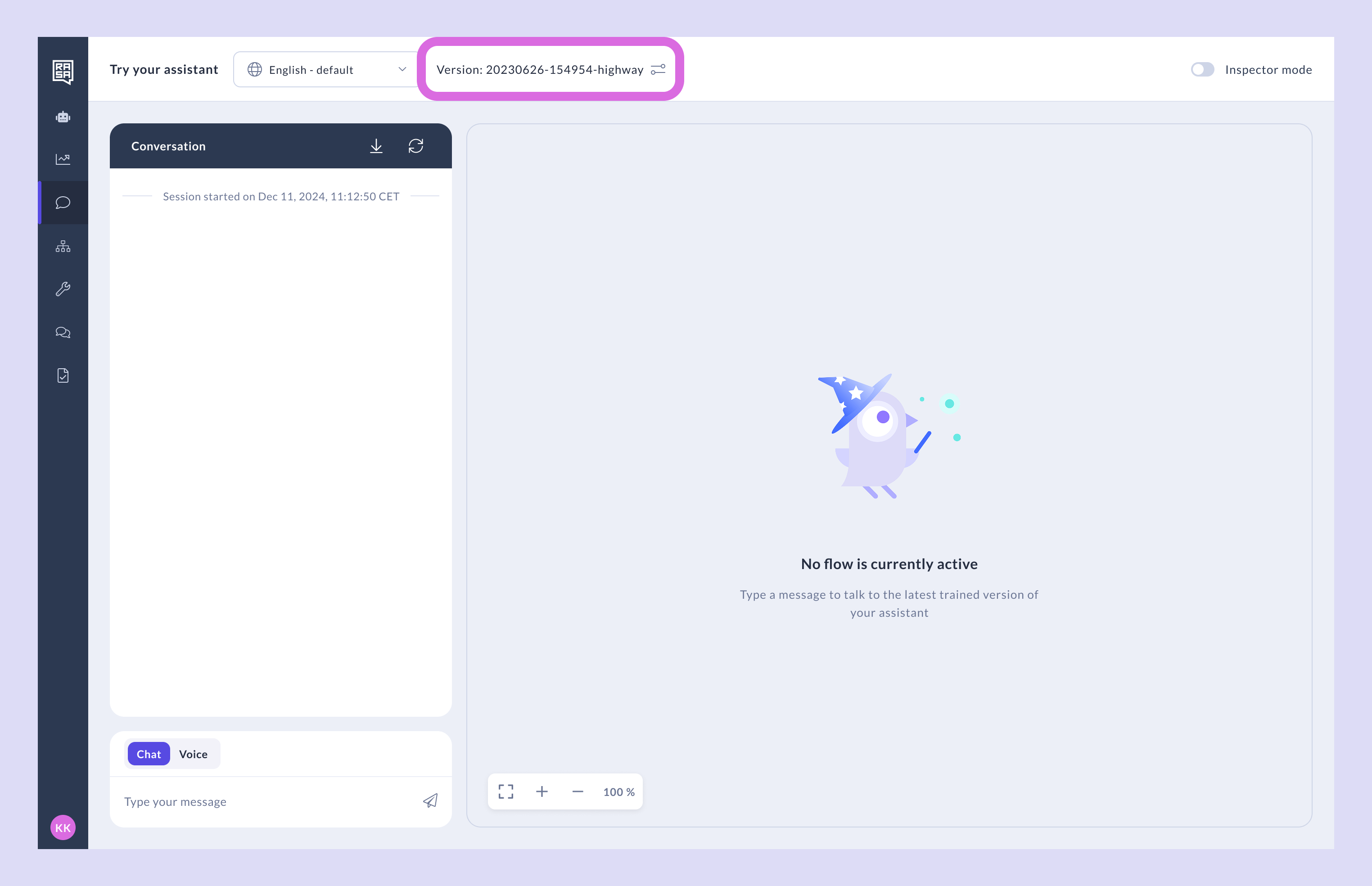
Ensure the correct assistant version is selected.
Switching Between Chat and Voice
If your license includes voice capabilities, you can switch between chat and voice modes:-
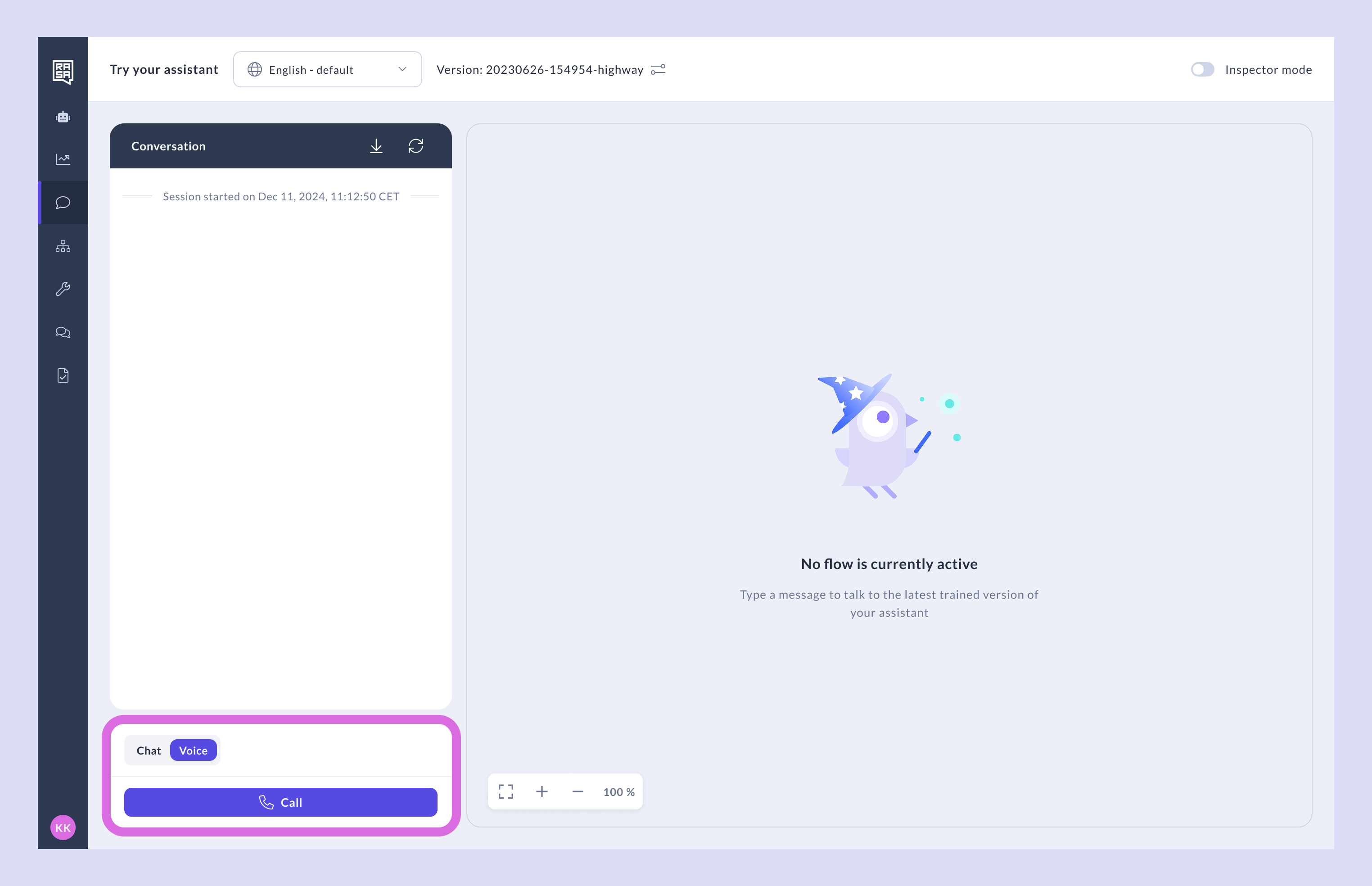
Use the toggle above the message input to switch to voice. Then click “Call”.
-
Allow microphone access, speak to your assistant, and view real-time transcripts in the chat panel. Currently, voice input is limited to English.
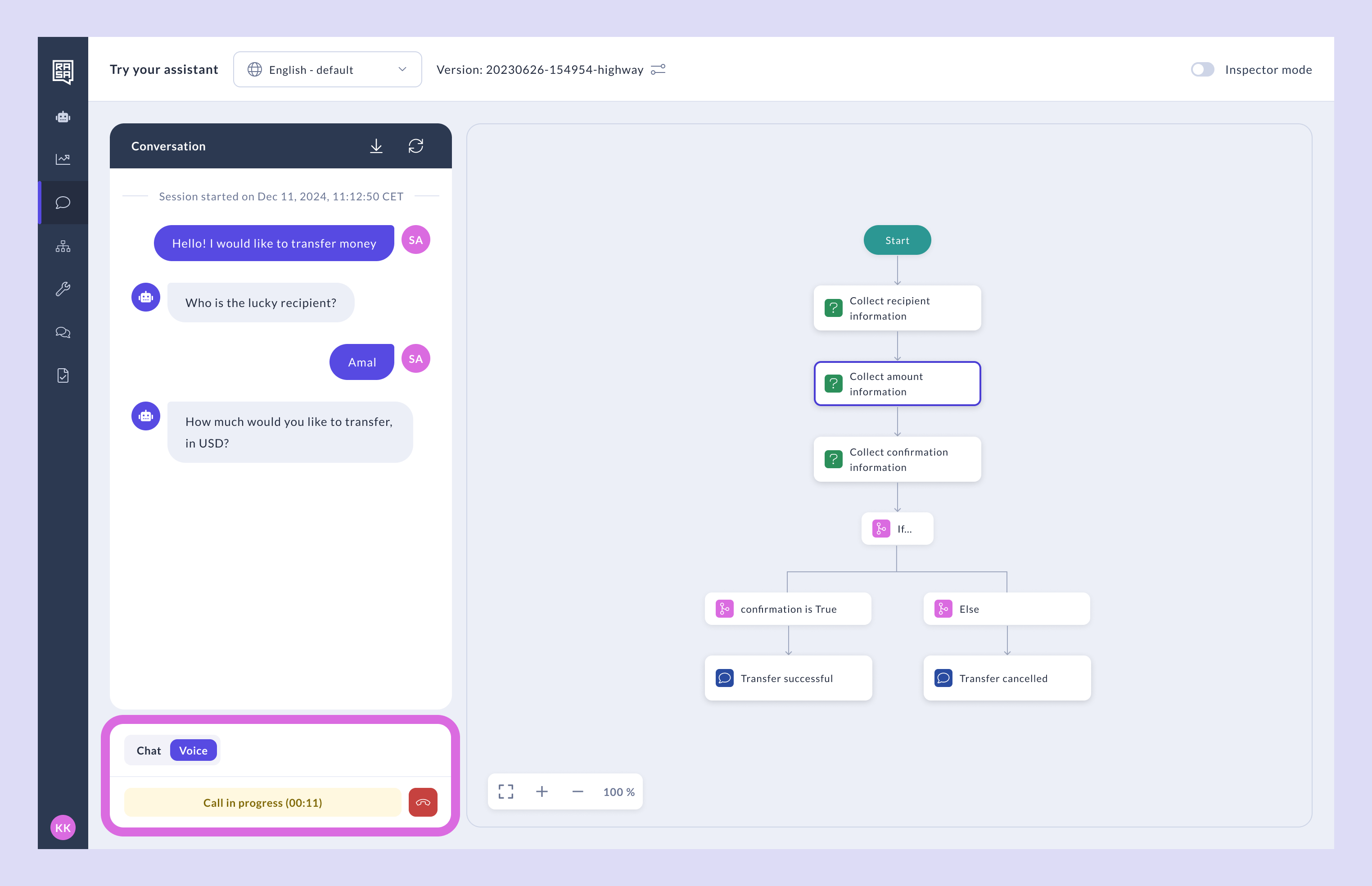
- By default, Studio uses Deepgram for speech-to-text (STT) and Cartesia for text-to-speech (TTS). You can customize this setup and choose a different provider outside of Studio. Learn more about building voice assistants
Activate Assistant Version
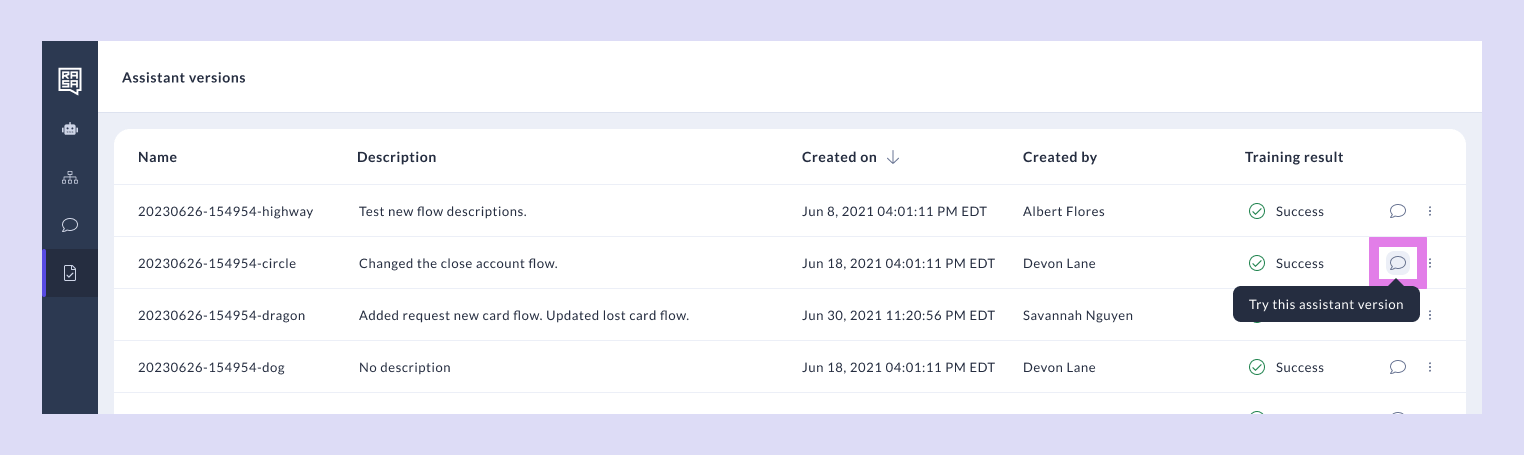
The assistant version will be inactive after one hour or when the maximum number of active assistants is reached. To reactivate and test it, go to Assistant versions and click the arrow icon. Once reactivated, you can test the version again.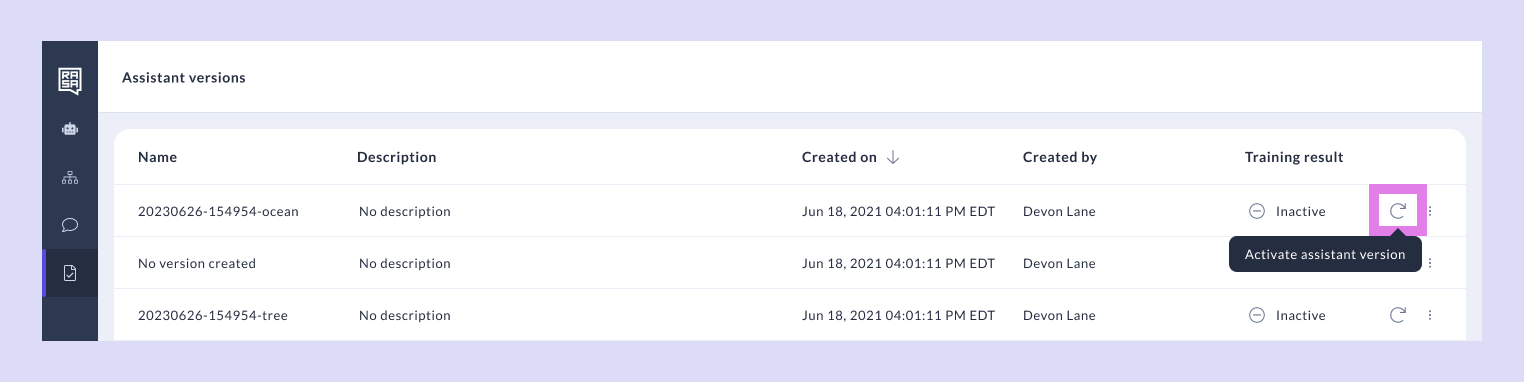
Basic Mode: Live Flow Preview
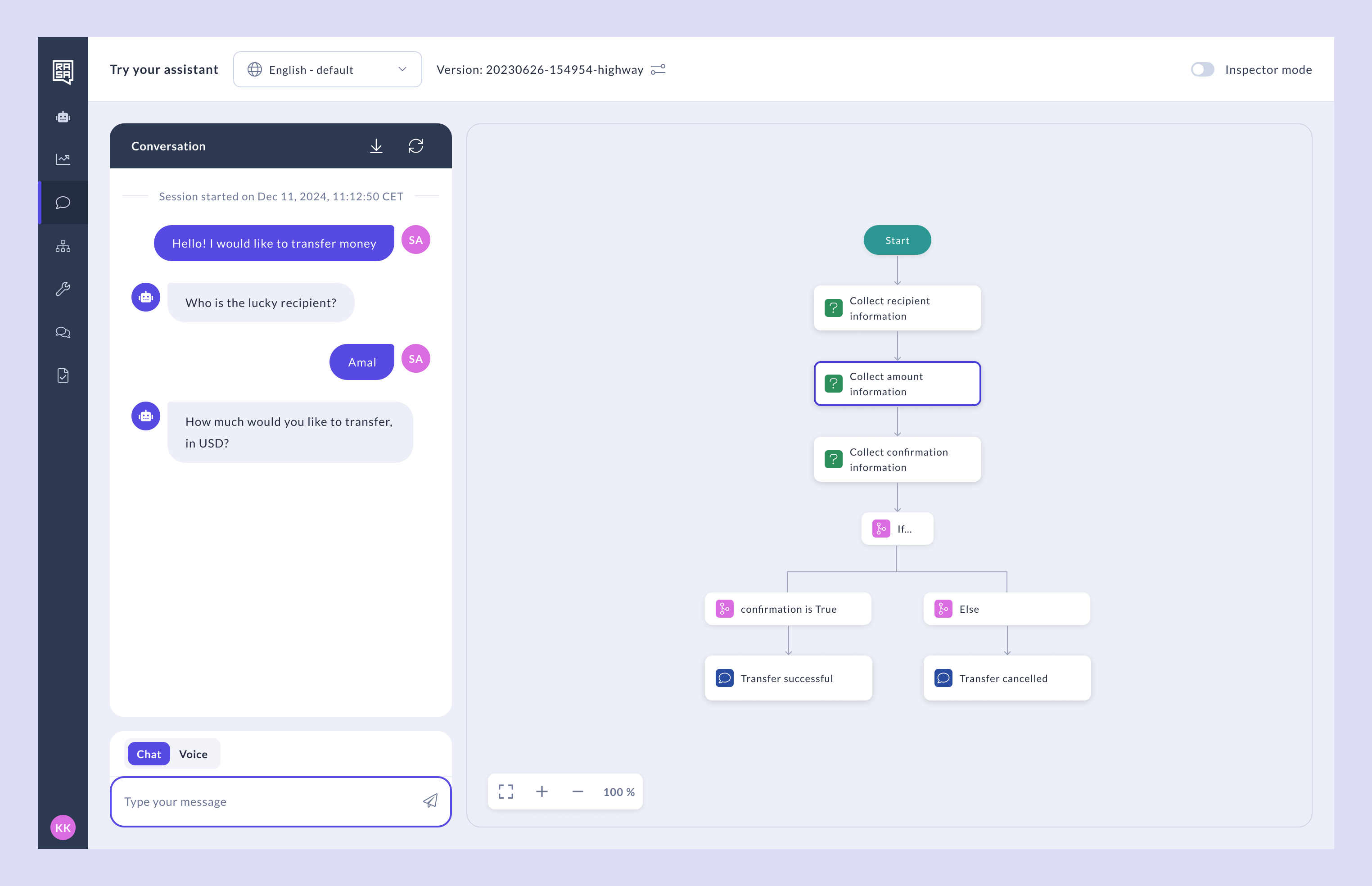
Basic Mode is the default mode when testing. It provides:- A live chat interface
- A Live Flow Preview panel that shows your assistant moving through different conversation paths
Inspector Mode: Debugging and Insights
Toggle Inspector Mode (top right corner) to unlock deeper insights: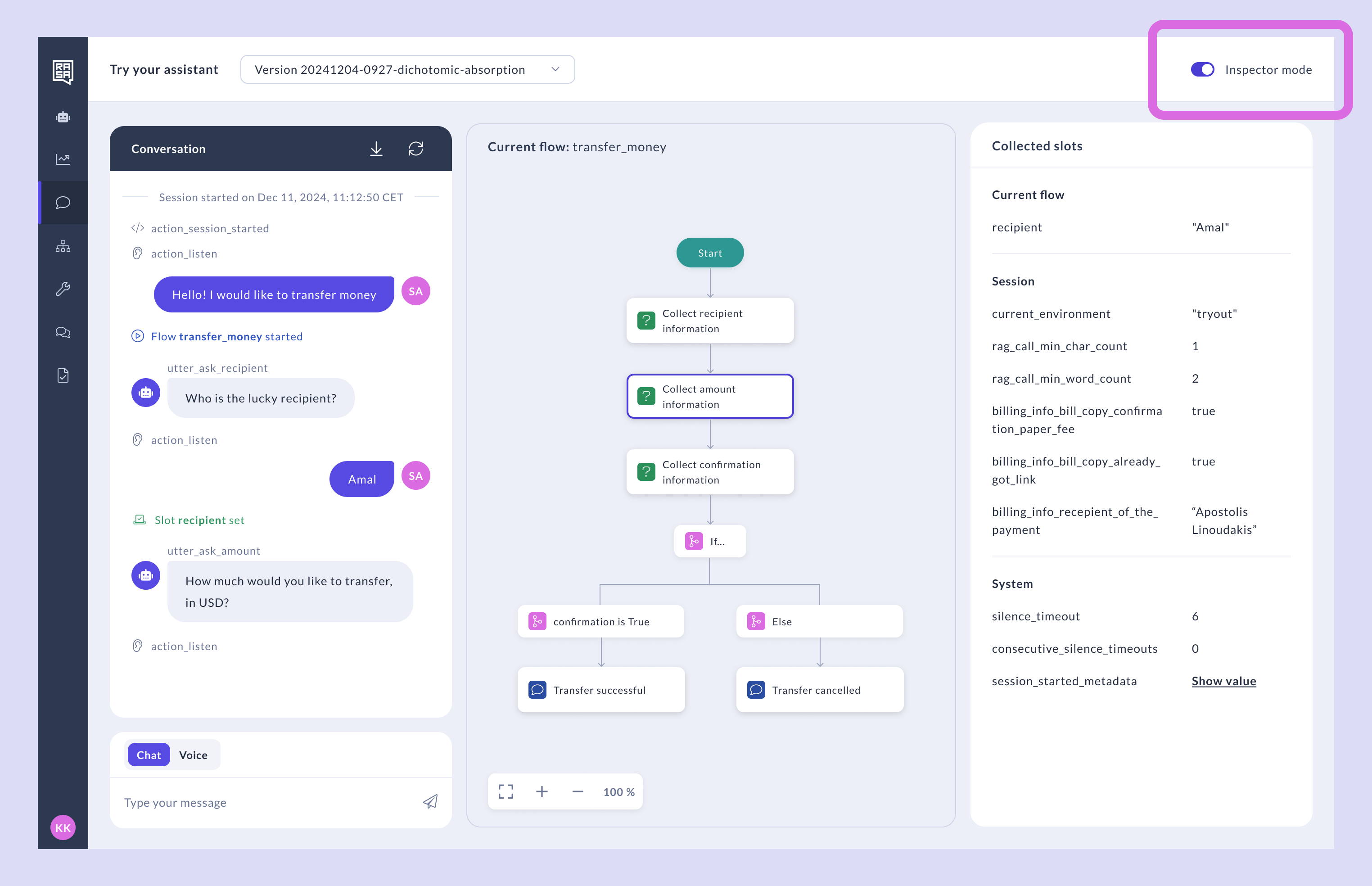
1. View Events
Click on any user or assistant message to view slots set, flows triggered, and other key events.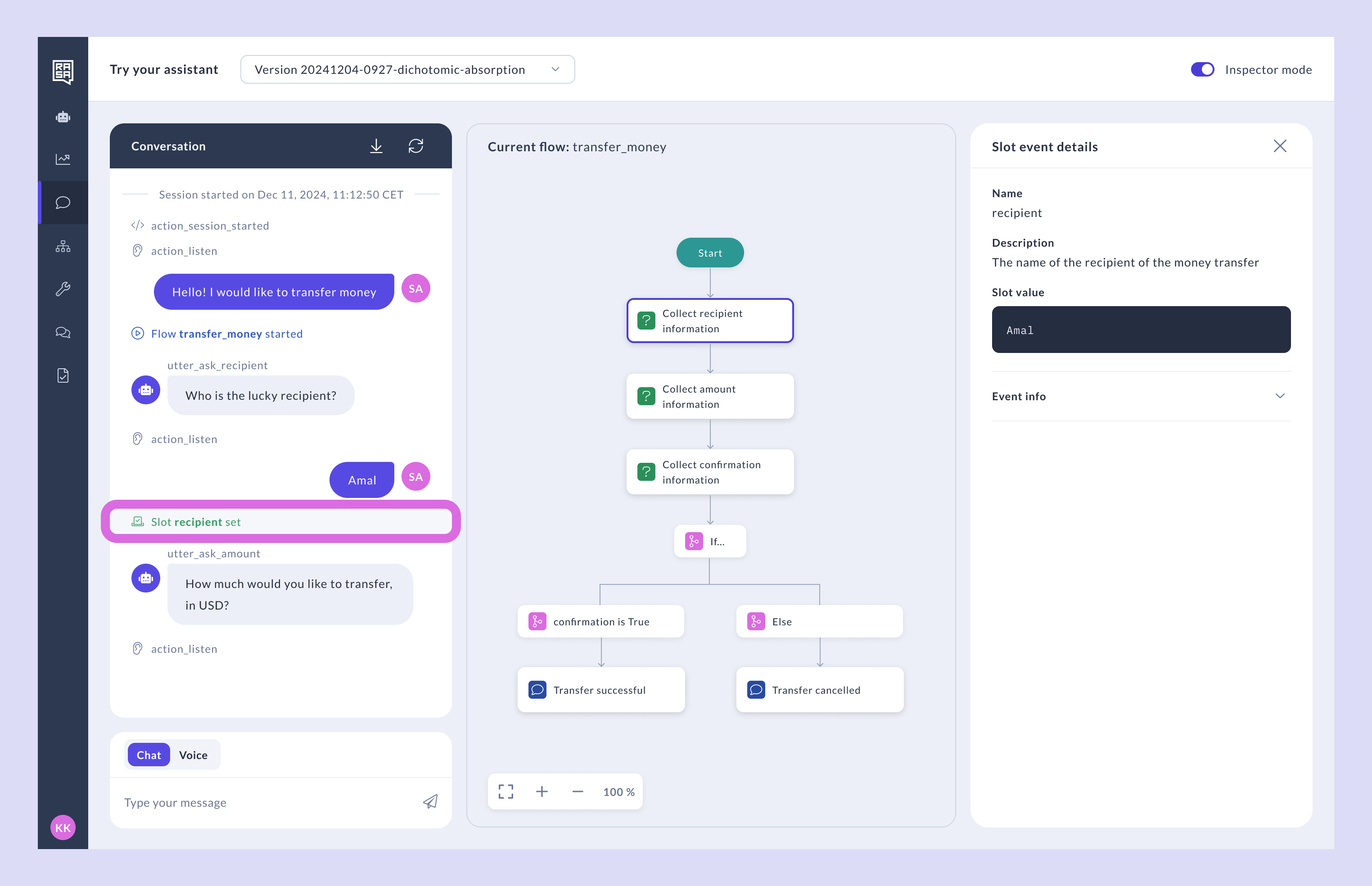
2. Predicted Commands
Select a user message to view the predicted command and understand why a specific path was taken.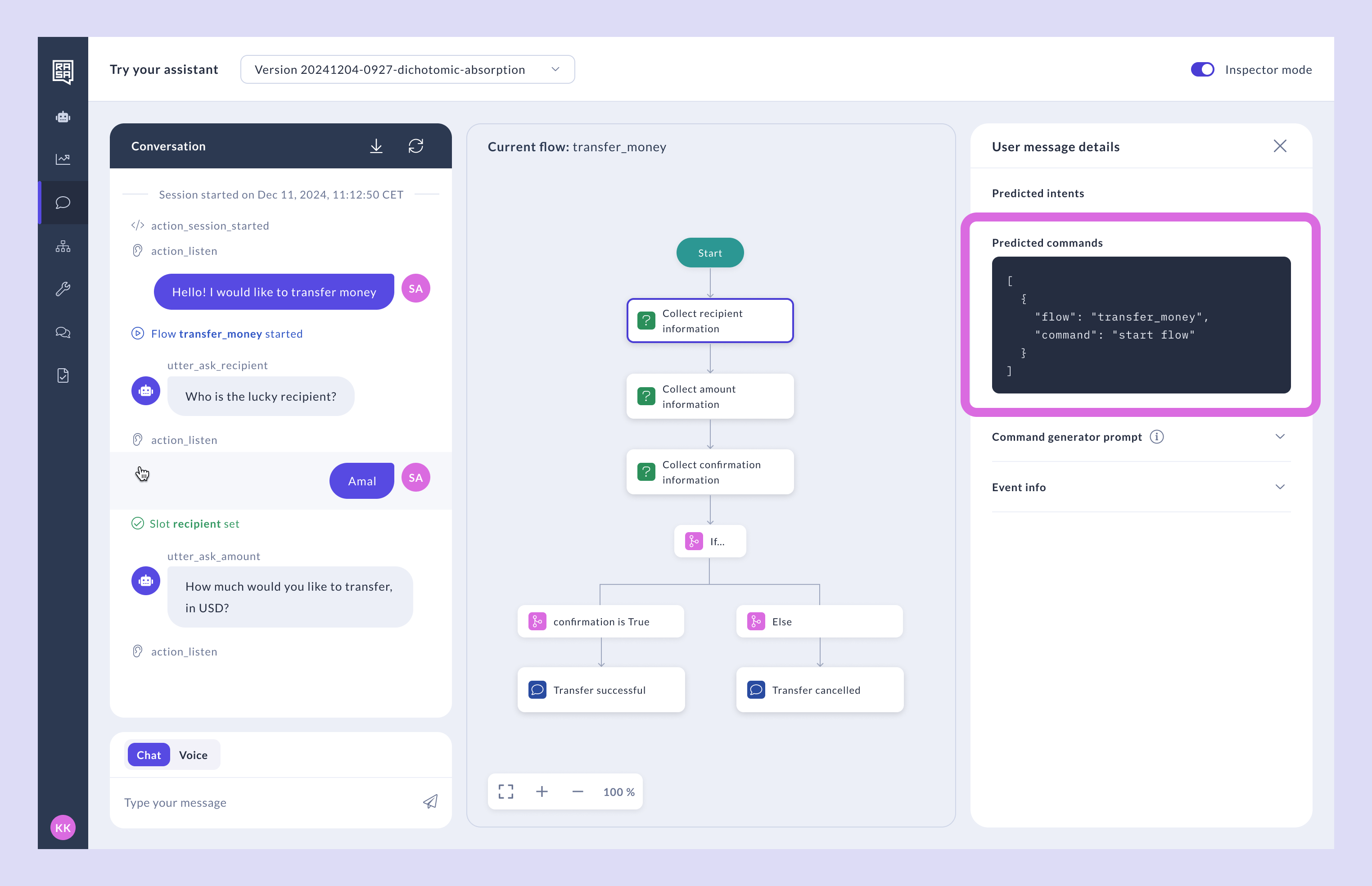
3. Model Details
Click on an assistant message to see the prompt, input, and token usage — useful for understanding performance and API costs.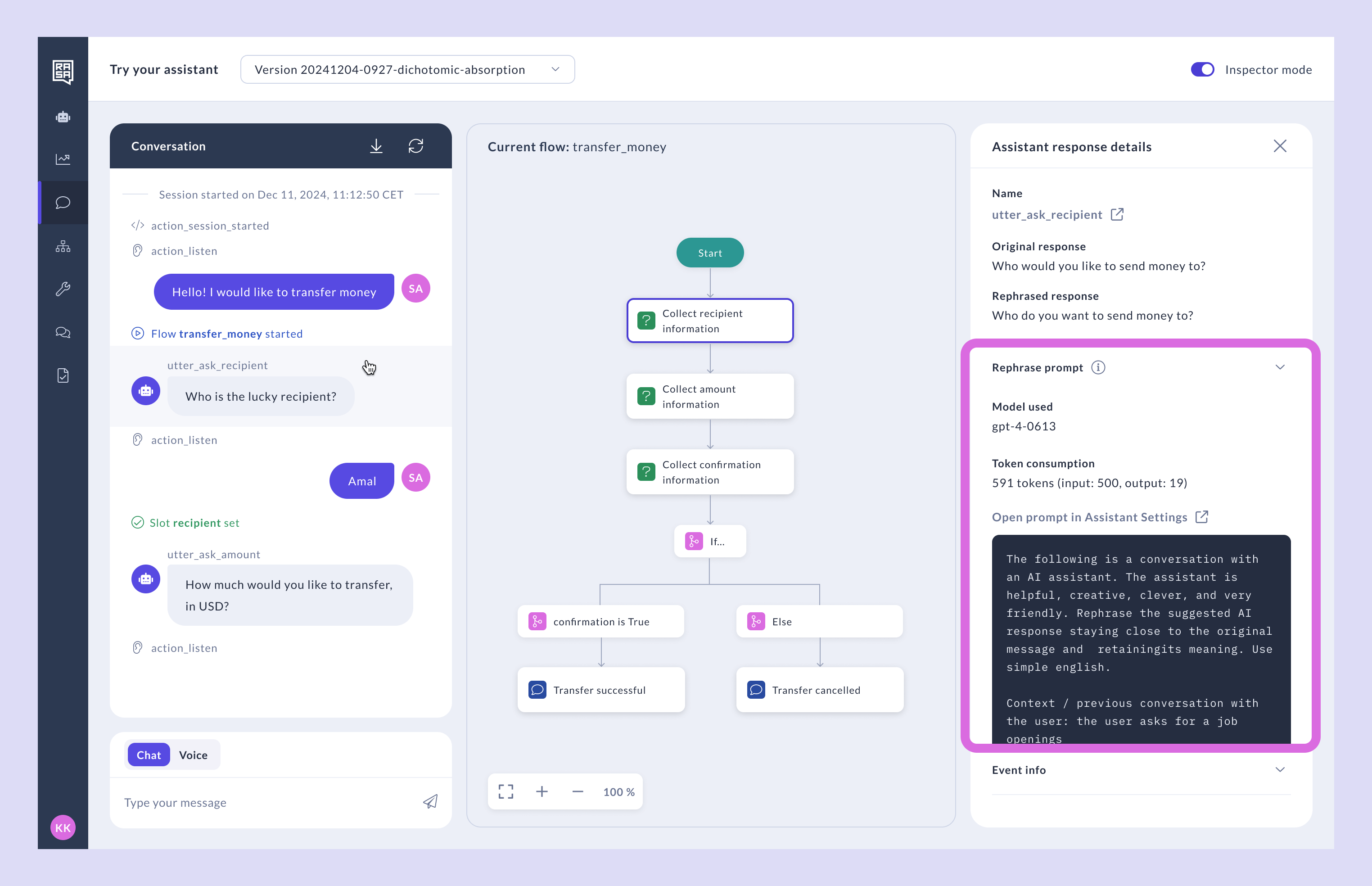
Speed Up Testing
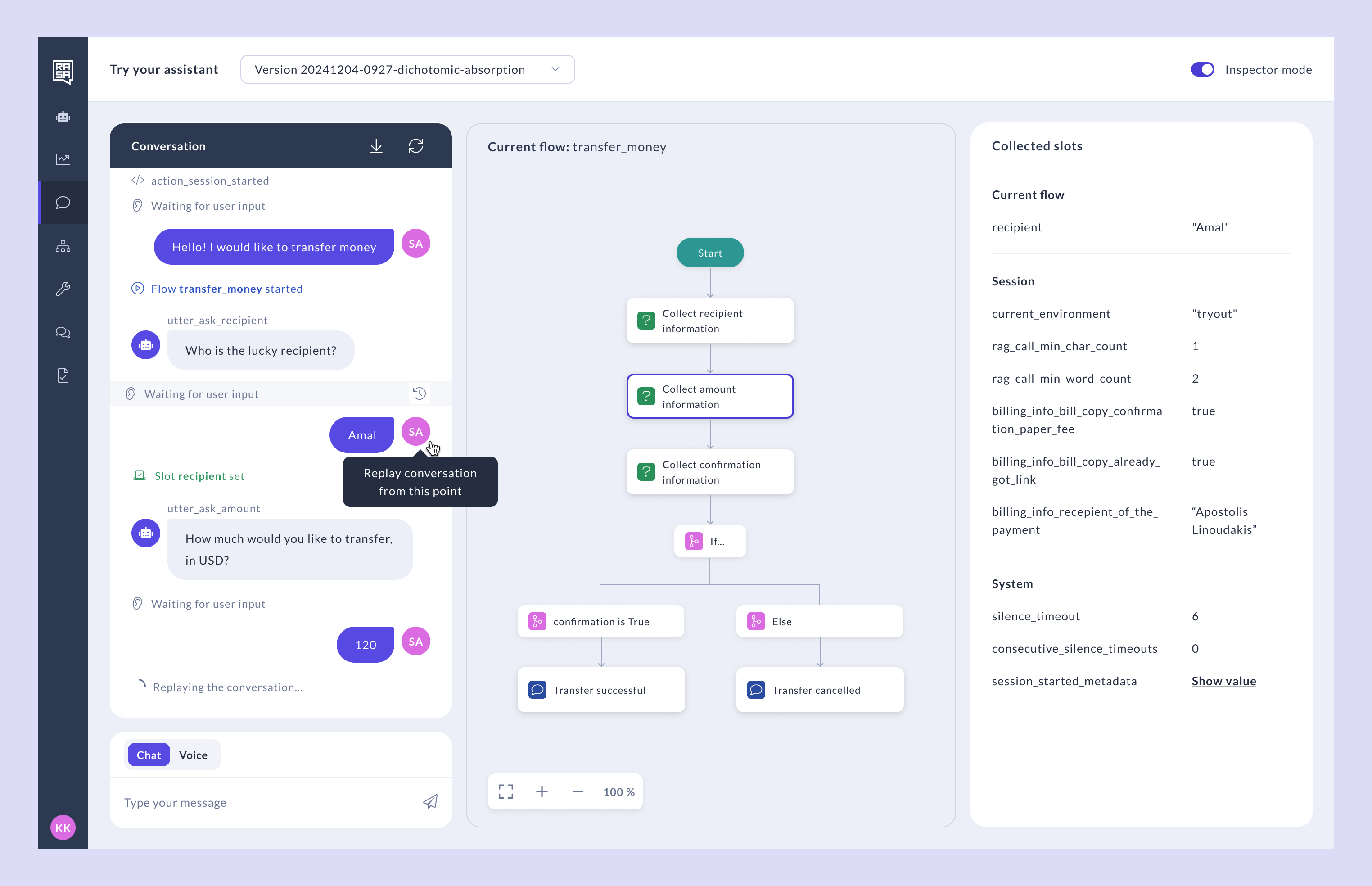
Beyond analysis, Inspector also provides tools to speed up your conversation testing workflow.Conversation Replay
- Select the Replay icon next to a “Waiting for user input” event. This will trigger the conversation to replay back that point.
-
Try out different inputs for testing different outcomes of the conversation.
Generate Tests from Chat
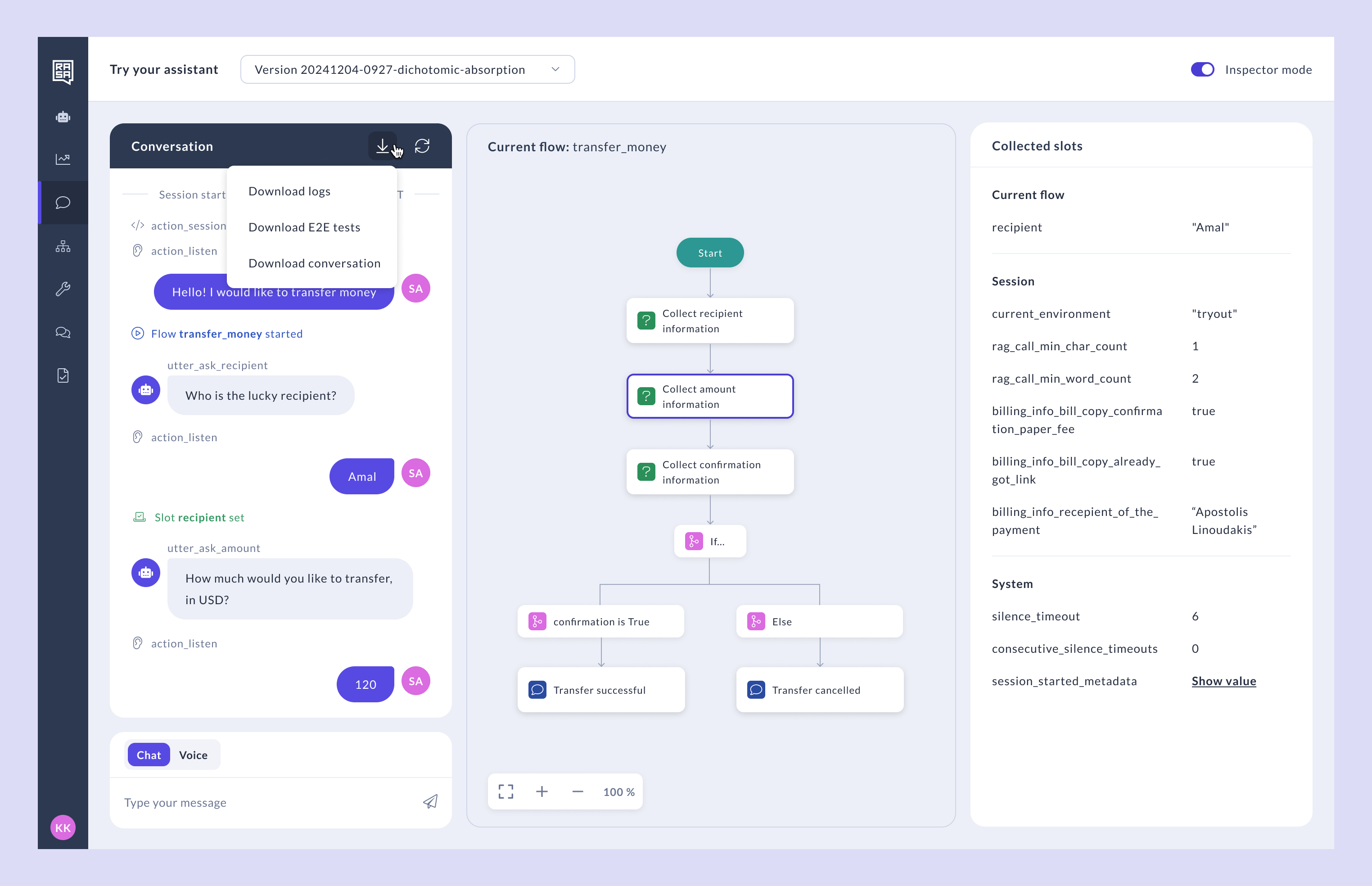
Once you’re happy with a conversation, you can export it to share with your team, or generate a test case for your assistant. Select the menu icon in the top right of your conversation panel.- Download logs if you’d like to review the full deployment logs of your running assistant.
- Download conversation — Saves your conversation as a YAML transcript. When your assistant has a Studio-managed language slot, the file includes a
languagefield identifying the language the conversation was in. - Download E2E Tests If you’d like to save your conversation and use it as an end-to-end (E2E) test to validate assistant behavior.