> ## Documentation Index
> Fetch the complete documentation index at: https://rasa.com/docs/llms.txt
> Use this file to discover all available pages before exploring further.
# Translating Your Responses
> Managing translations for your assistant in Studio.
Once you've [configured your assistant](/docs/studio/build/set-up-your-assistant) to support multiple languages, you can translate its content directly in the Studio CMS.
Rasa enables you to have fine-grained control over translations for all user facing content including:
* **[Responses](/docs/studio/build/content-management/translations#1-translate-responses)**: Pre-translate or generate translations for all your assistant's responses.
* **[Buttons + Links](/docs/studio/build/content-management/translations#2-translate-buttons-and-links)**: Translate and localize actions and urls in your conversation.
* **[Flow names](/docs/studio/build/content-management/manage-flows#optional-translating-flow-names)**: Assistants will sometimes refer to flows in conversation when cancelling or clarifying an action. Translating flow names ensures that this experience is seamless in every language.
### 1. Translate Responses
Use the language dropdown in the top-left corner of the CMS to select the target language for translation.
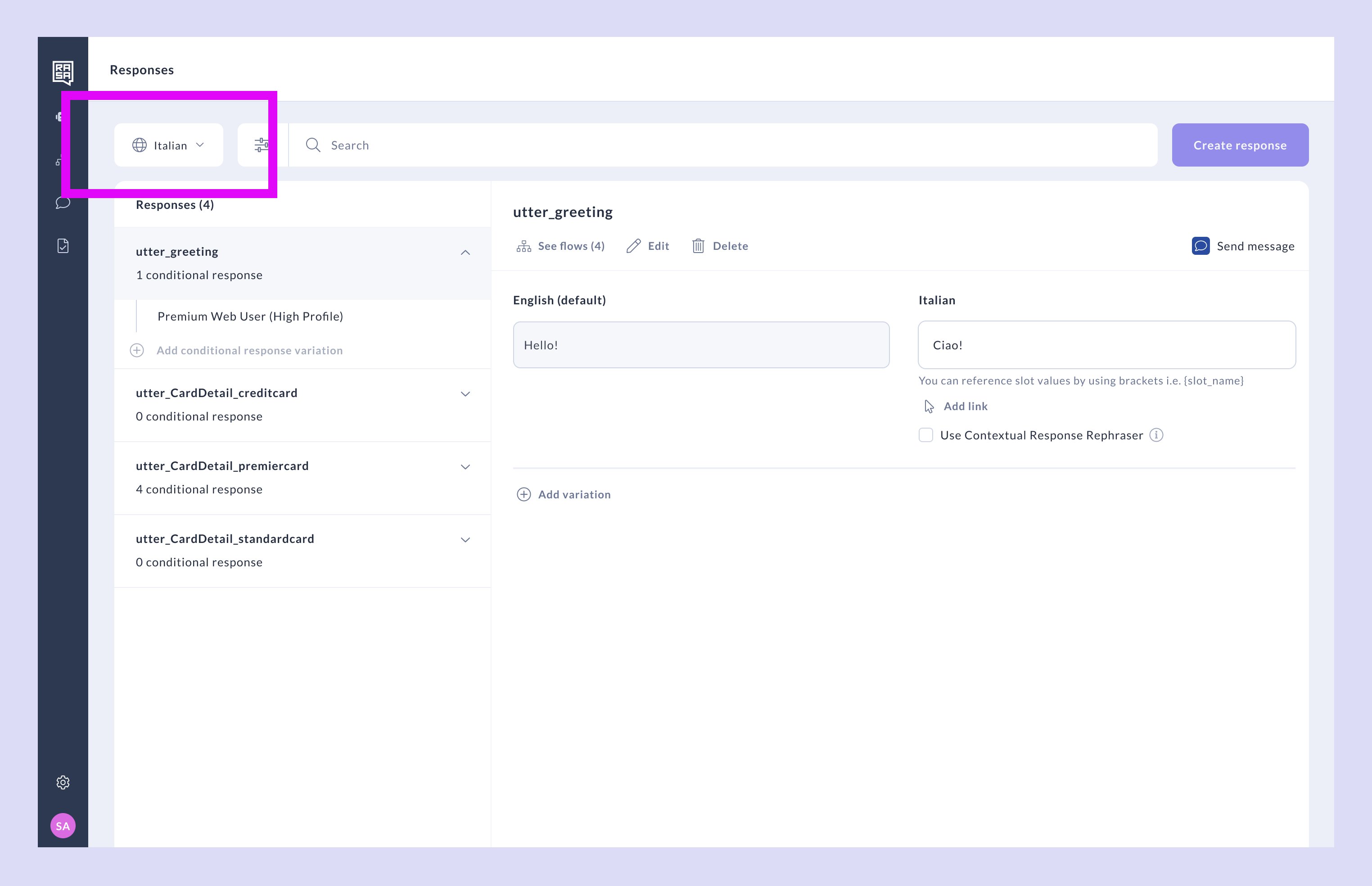 Your default language will appear on the left as a reference. To make changes to it, return to the default view.
Before starting translations, ensure your default language response is complete and includes all necessary messages, variants, buttons, and links. All translations will reference this default content.
#### Missing Translation Warnings
When opening the translation CMS for the first time, you may notice some translation warning badges in your responses.
This means that you are missing pre-translated content for that response in the language you have selected. Once you have providing a translation in that language for the given response the warning will be resolved.
You can still train an assistant without resolving these warnings.
Your default language will appear on the left as a reference. To make changes to it, return to the default view.
Before starting translations, ensure your default language response is complete and includes all necessary messages, variants, buttons, and links. All translations will reference this default content.
#### Missing Translation Warnings
When opening the translation CMS for the first time, you may notice some translation warning badges in your responses.
This means that you are missing pre-translated content for that response in the language you have selected. Once you have providing a translation in that language for the given response the warning will be resolved.
You can still train an assistant without resolving these warnings.
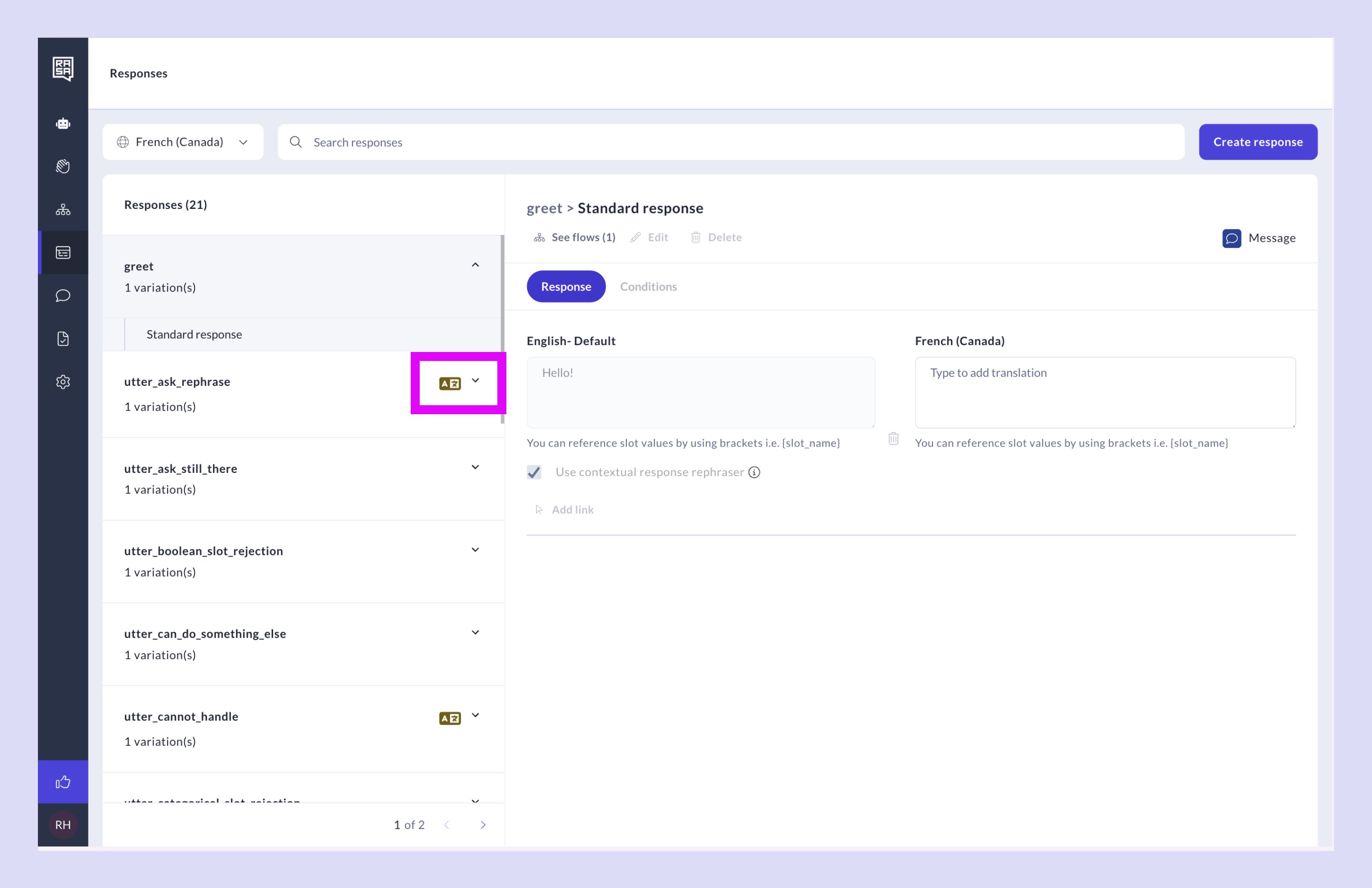 Enter your translations in the corresponding fields for each target language.
* If the Rephraser is **disabled**, ensure you provide translations for all variants to maintain seamless conversations across languages.
* If you use different phrasing for conditional variants, ensure all variants are fully translated.
### 2. Translate Buttons and Links
Buttons and links are listed beneath each response in the CMS.
* Translate the **button text** and **link labels** to reflect the target language.
* Optionally - translate the **button payload** or **link urls** to provide a localized experience.\
(ie. `www.yourwebsite.com` -> `www.yourwebsite.com/de`)
### 3. Using the Rephraser
If you want to skip writing manual translations, you can enable an LLM to generate translations during the conversation. Learn more about [**Rephraser here**](/docs/studio/build/set-up-your-assistant#step-2-configure-your-assistant).
To get started quickly - you can enable \[rephraser globally] in your assistant settings or on a per message basis as in the example below.
When enabled, your assistant provides a translated generated response in the language of conversation without needing to add any pre-translated content.
Enter your translations in the corresponding fields for each target language.
* If the Rephraser is **disabled**, ensure you provide translations for all variants to maintain seamless conversations across languages.
* If you use different phrasing for conditional variants, ensure all variants are fully translated.
### 2. Translate Buttons and Links
Buttons and links are listed beneath each response in the CMS.
* Translate the **button text** and **link labels** to reflect the target language.
* Optionally - translate the **button payload** or **link urls** to provide a localized experience.\
(ie. `www.yourwebsite.com` -> `www.yourwebsite.com/de`)
### 3. Using the Rephraser
If you want to skip writing manual translations, you can enable an LLM to generate translations during the conversation. Learn more about [**Rephraser here**](/docs/studio/build/set-up-your-assistant#step-2-configure-your-assistant).
To get started quickly - you can enable \[rephraser globally] in your assistant settings or on a per message basis as in the example below.
When enabled, your assistant provides a translated generated response in the language of conversation without needing to add any pre-translated content.
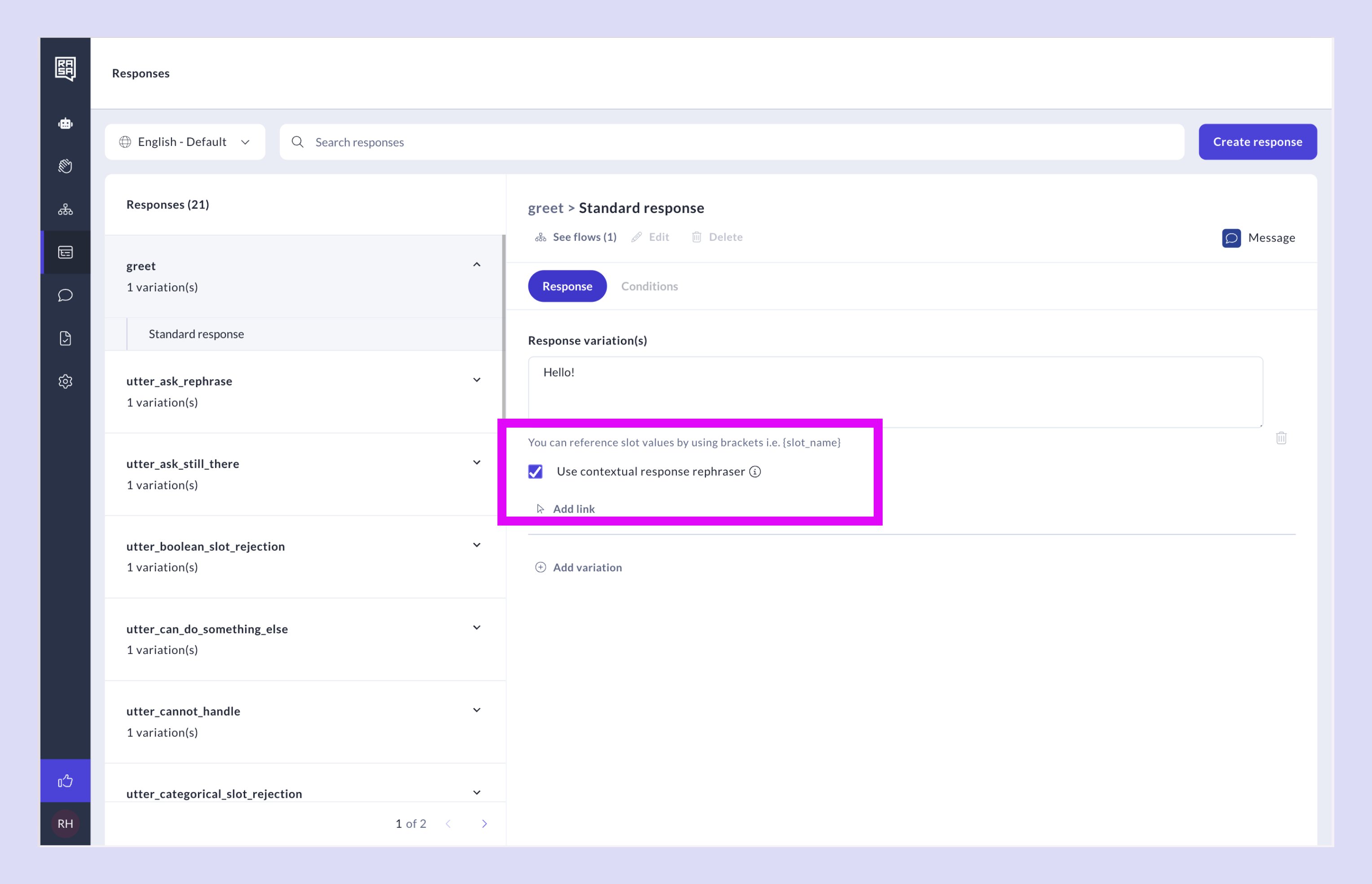 * Enable it globally from the Assistant Settings or per individual response.
* When Rephraser is enabled, your assistant automatically generates translations in real-time based on the conversation's language.
* You can still manually overwrite Rephraser output for more control.
> 📌 Tip: Translations are not required to publish your assistant, but missing translations may impact the experience for users in that language. You’ll see a warning if translations are incomplete.
## Related topics
- [Translating Your Assistant](/docs/pro/build/translating-your-assistant.md)
- [Writing Responses](/docs/pro/build/writing-responses.md)
- [How to Manage Flows](/docs/studio/build/content-management/manage-flows.md)
- [Responses](/docs/studio/build/content-management/responses.md)
* Enable it globally from the Assistant Settings or per individual response.
* When Rephraser is enabled, your assistant automatically generates translations in real-time based on the conversation's language.
* You can still manually overwrite Rephraser output for more control.
> 📌 Tip: Translations are not required to publish your assistant, but missing translations may impact the experience for users in that language. You’ll see a warning if translations are incomplete.
## Related topics
- [Translating Your Assistant](/docs/pro/build/translating-your-assistant.md)
- [Writing Responses](/docs/pro/build/writing-responses.md)
- [How to Manage Flows](/docs/studio/build/content-management/manage-flows.md)
- [Responses](/docs/studio/build/content-management/responses.md)