> ## Documentation Index
> Fetch the complete documentation index at: https://rasa.com/docs/llms.txt
> Use this file to discover all available pages before exploring further.
# Slots
> View, create, edit and remove all your assistant's slots
The slots section of the CMS is a centralised place for content managers and flow builders to create and manage all the slots used in an assistant.
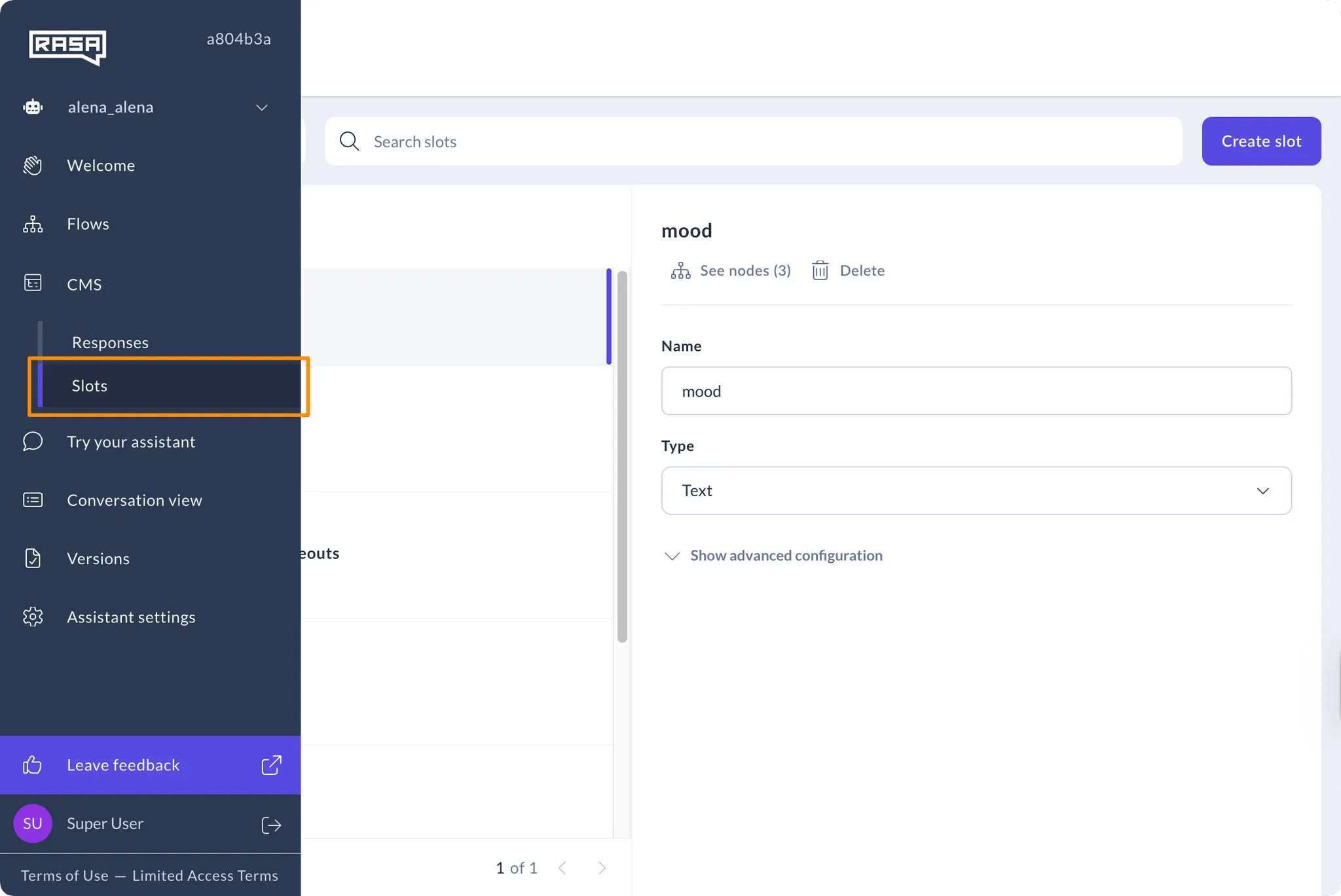
Access from Slots navigation item under CMS on the navigation menu.
 ### How to Create a Slot
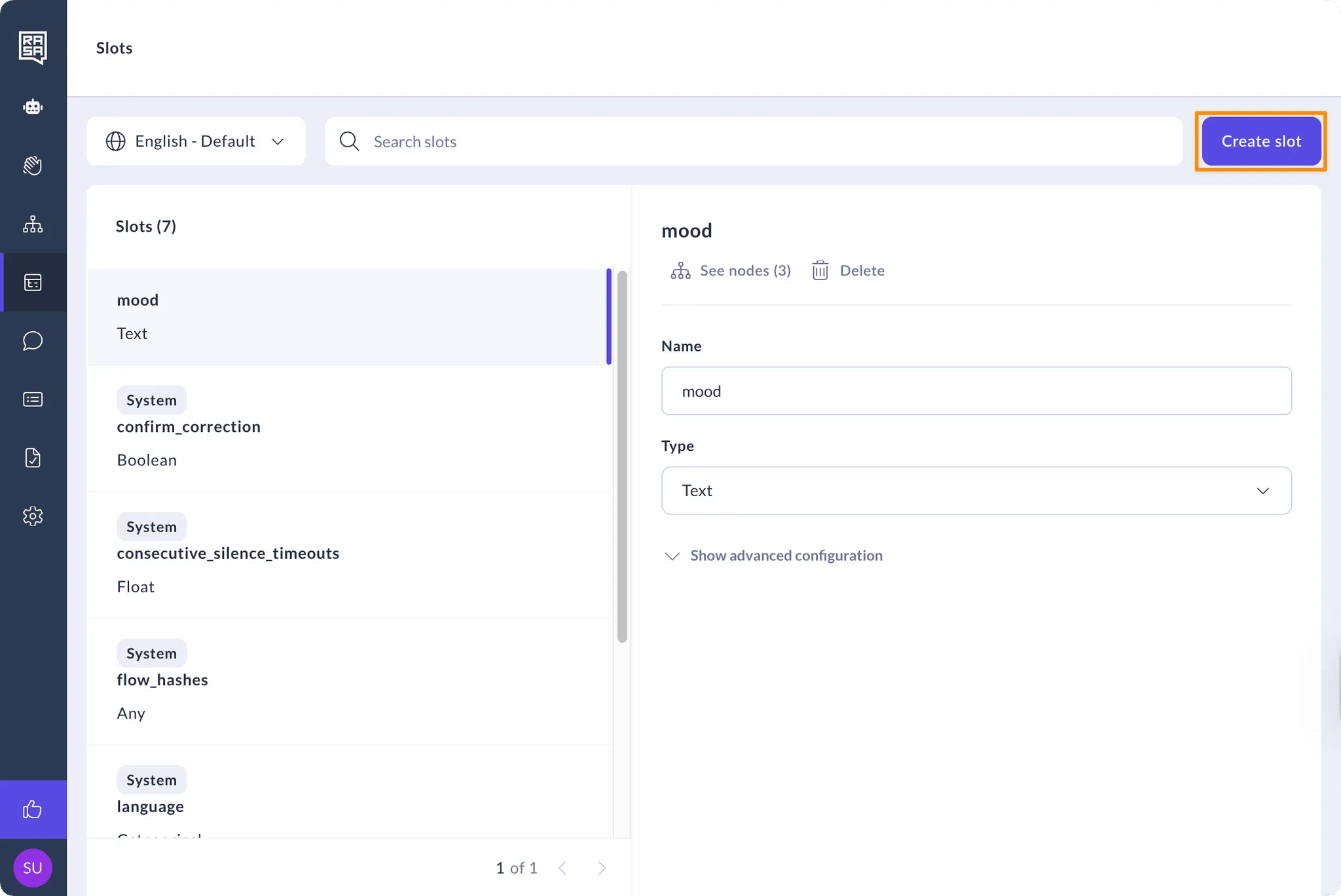
1. Click on the “Create slot” button on the top right of the screen.
### How to Create a Slot
1. Click on the “Create slot” button on the top right of the screen.
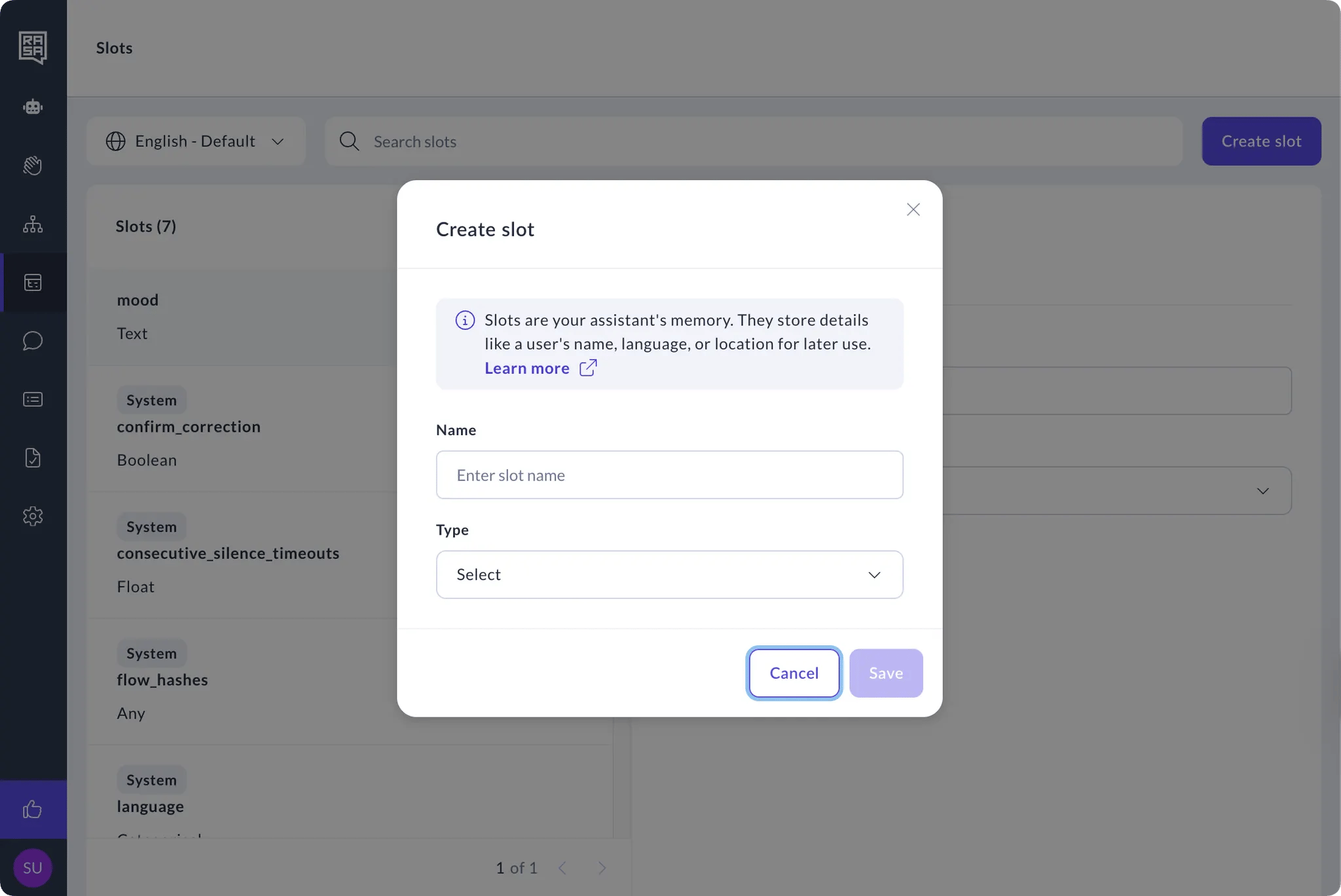
 2. Type in a name and select the slot type.
 ### How to Manage Slots
1. Select the slot from the list.
### How to Manage Slots
1. Select the slot from the list.
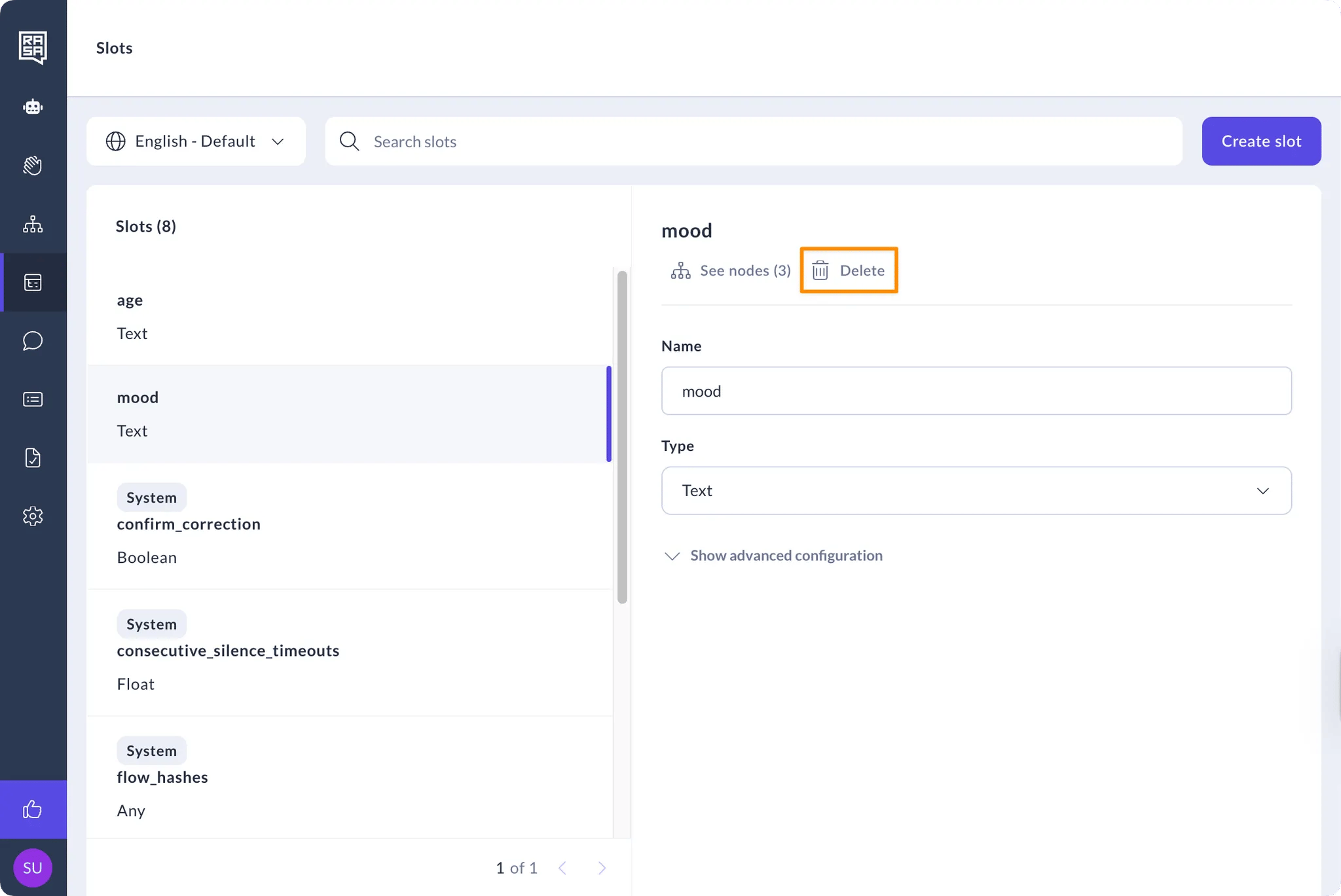
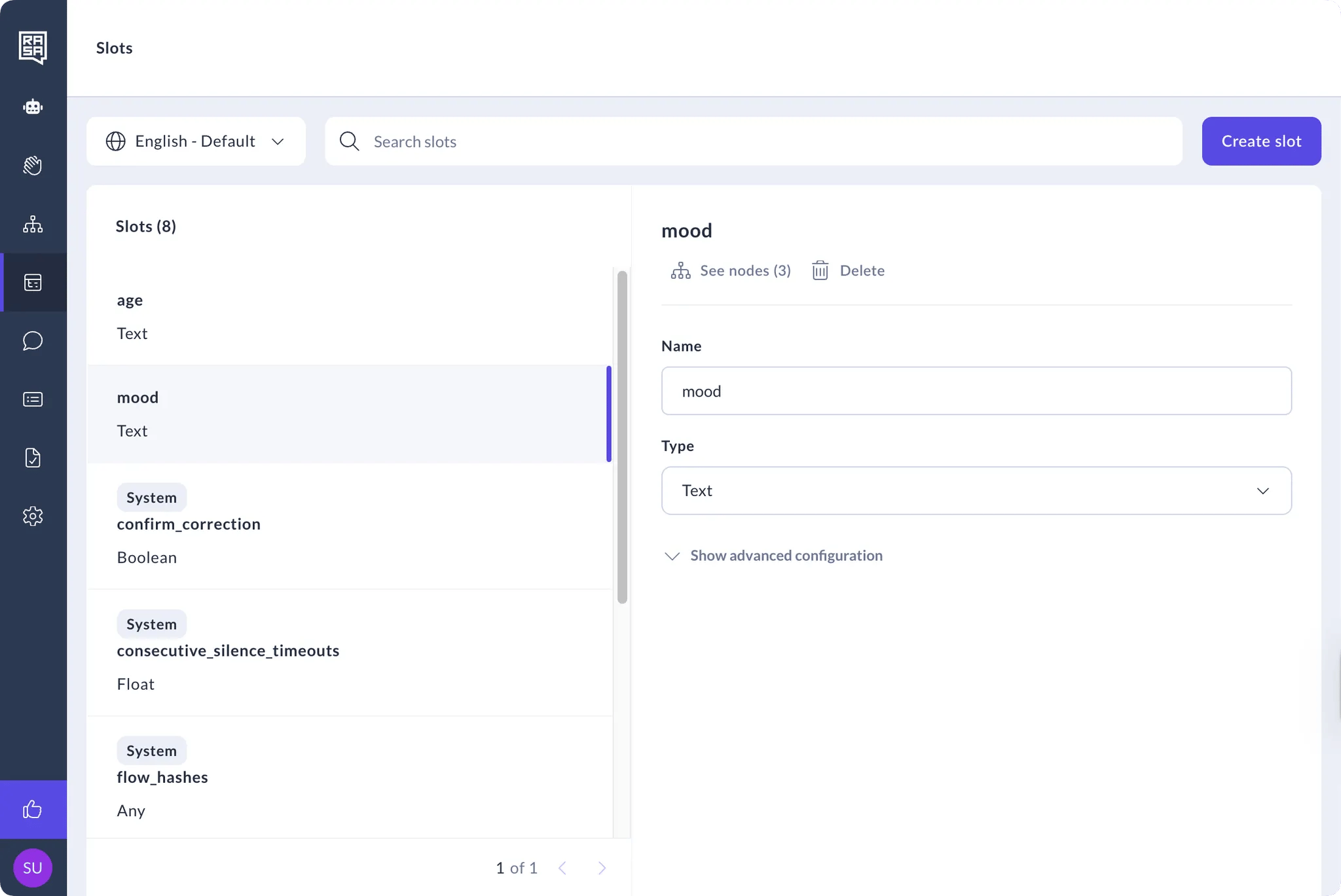 2. Click the “Delete” button to delete the response from the assistant.
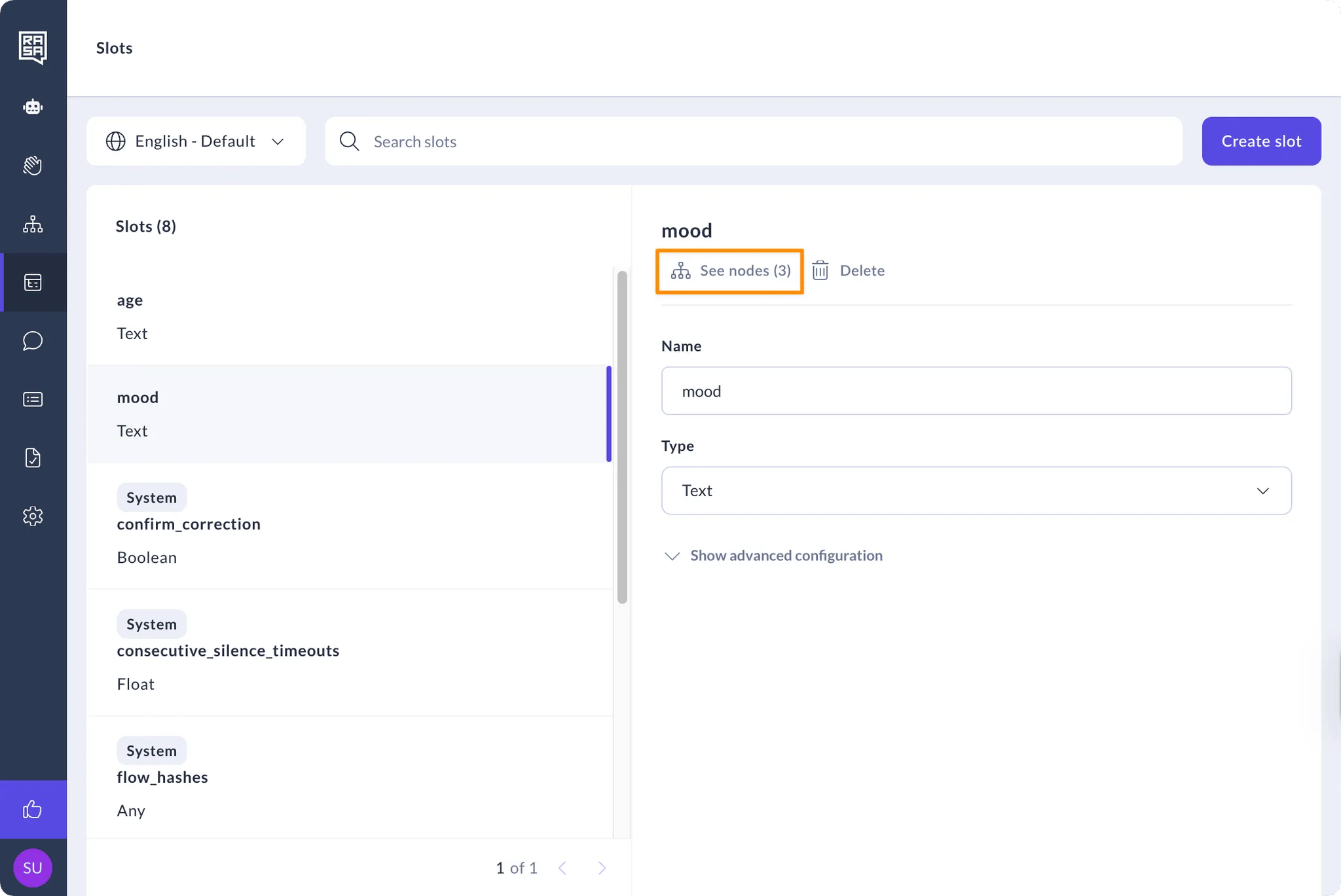
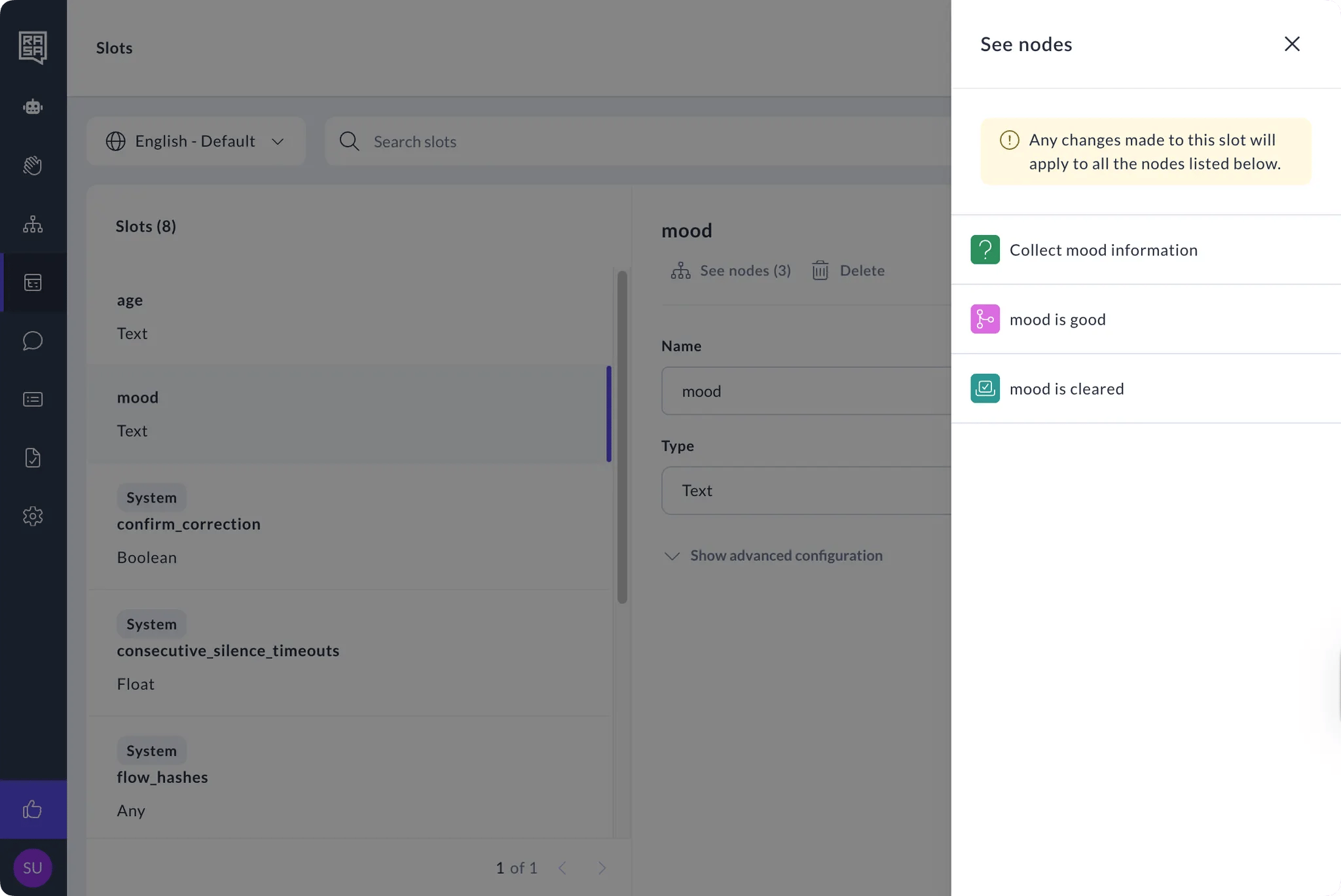
 3. Click the “See nodes” button under the response name to view all the nodes where the slot is being referenced.
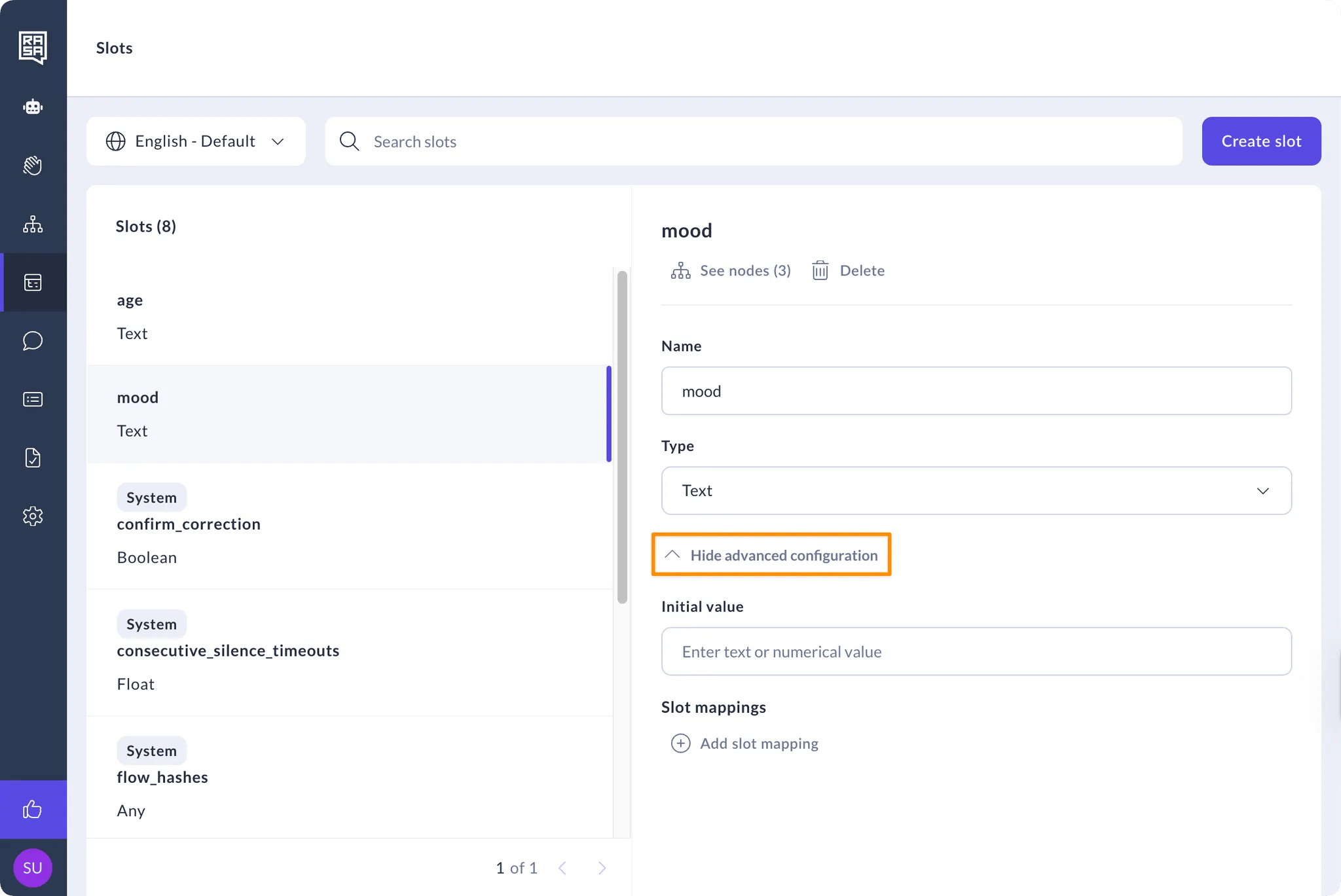
 4. Change any slot values or type using the fields on the page, or any other advanced slot configuration by clicking on the “Show advanced configuration” button
 ## Related topics
- [Slots](/docs/reference/primitives/slots.md)
- [Assistant Memory (Slots)](/docs/pro/build/assistant-memory.md)
- [Slot Validation Actions](/docs/reference/integrations/action-server/validation-action.md)
- [How to Set Slots](/docs/studio/build/flow-building/set-slots.md)
- [Test Cases Reference](/docs/reference/testing/e2e/test-cases.md)
## Related topics
- [Slots](/docs/reference/primitives/slots.md)
- [Assistant Memory (Slots)](/docs/pro/build/assistant-memory.md)
- [Slot Validation Actions](/docs/reference/integrations/action-server/validation-action.md)
- [How to Set Slots](/docs/studio/build/flow-building/set-slots.md)
- [Test Cases Reference](/docs/reference/testing/e2e/test-cases.md)